PAWS: Personal AI Work System

Project management and organizing for any AI assistant, on any device

PAWS is a starter kit of folders and plain text files that helps you and your AI assistants organize your projects, goals and commitments, in any area of work you choose.

  • Organize and keep project notes, decisions, next actions, records, calendar events, commitments, and reminders in a structured format your AIs can understand and help you manage.
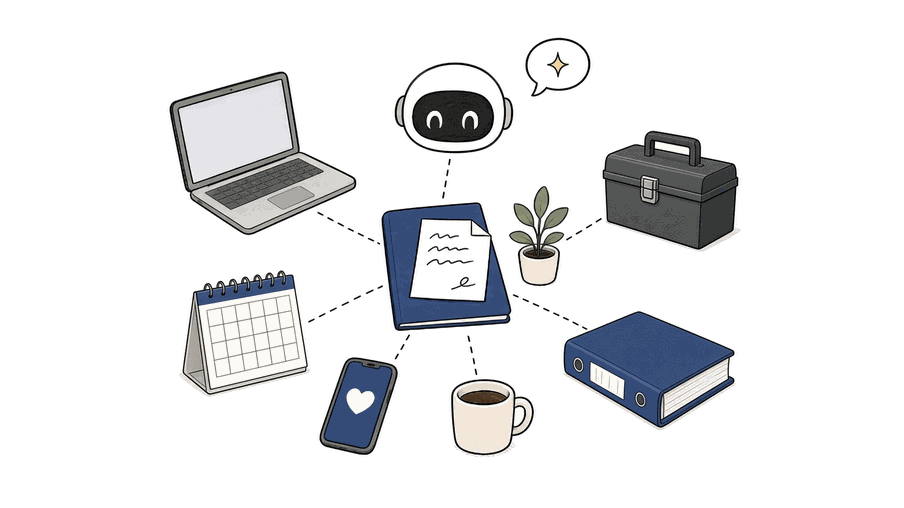
  • Save and store your prompts, AI instructions, discussions, and chat history in your own files, so your work carries over from one AI app to the next.
  • Design features include a shared mailbox, a chat forum, a calendar, and work spaces where your AI assistants can pass work to each other.
  • Use cases I’ve tried include personal finances, career development, small business, education, health, trading and investment, travel planning, and app development.

Made for people who use AI for real work and want it organized and accessible, no matter what device or platform they’re on.

New to this? Start with Personalize. It asks a few questions and builds the kit for you.

Answer a few questions and rename the folders and roles to fit how you think. Recommended

Personalize your starter kit

The plain version. Unzip it and point your AI at the Setup folder.

Download baseline ZIP

View source on GitHub

What your AI needs to work with PAWS

  • Access: Your AI can open, read and save files in your PAWS folder
  • Memory: A context window of 128K tokens or more (how much text the AI can keep in mind at once)
  • Model size: Any current top model from a major AI company, or an open model of 30B or more parameters (70B or more recommended)
  • Tools: File search and edit (access to a terminal, the command line, is a plus)

What’s in the download?

The Personal AI Work System (PAWS) organizes all the work you do with AI in plain Markdown files. There’s no AI inside it. It’s the set of folders where you and your AI assistants do the work. The setup looks simple, but it came out of a lot of time using it on my own work, so you don’t have to build the folders, startup steps and routines yourself.

Inside the system, folders hold your project notes, decisions, preferences, and next actions, while Markdown files give your AI clear instructions. Some files set your rules, boundaries, and how you want the AI to work. Others keep the long term history of your work, so your assistants can pick up where they left off and help improve the system over time.

To get started, download the baseline ZIP (one compressed file that opens into the full set of folders) or use the PAWS Builder to personalize your starter kit first. Both routes include a guided setup. Simply point your preferred AI assistant at the Setup folder, and it will walk you through a quick onboarding and give you a tour of your new workspace.

Obsidian showing a PAWS workspace. The sidebar lists the three units, each in its own color, and the numbered rooms inside Mansion home. The Start Here page is open beside it with its six steps.

Back to slides

Why simple folders and Markdown files?

There are two reasons for the PAWS design:

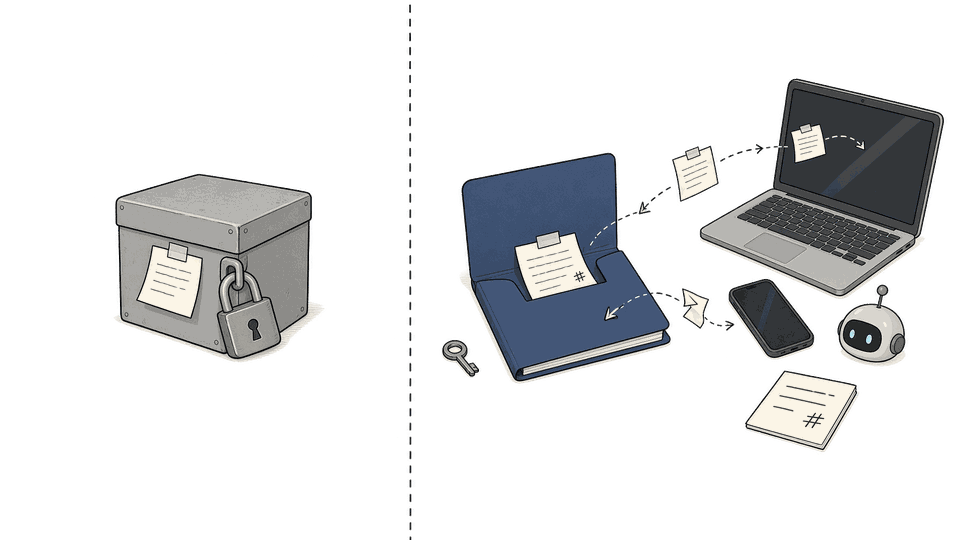
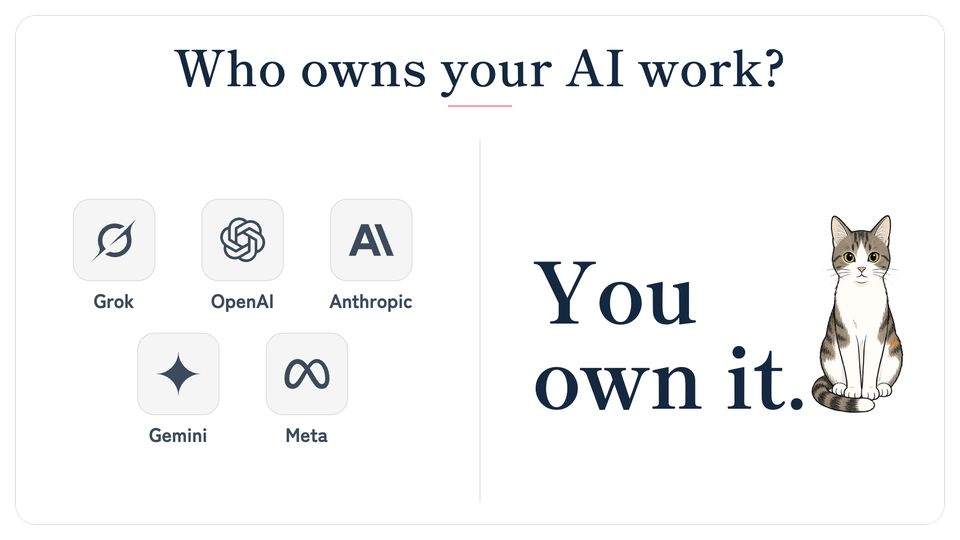
PAWS lives with you, not with your AI service providers. You’ll never have to worry about your work being behind a paywall. You pick and choose which models you want working inside your files, and PAWS makes sure that work is preserved and always available.

Markdown files (their names end in .md) are plain text with a few simple symbols added, like a # for a heading or a * for a bullet point. Any computer, phone, or app can open them, and they still read fine if you never learn the symbols. PAWS uses a few simple marks so you can talk to your AI without ever leaving your files. Leave notes, flags, questions and instructions for your AI right inside your documents. Any text editor or Markdown app can read and write the files.

Obsidian is my preferred app to navigate PAWS, and it’s what I would recommend for those new to Markdown. It’s free and fun to use. Obsidian calls your PAWS folder a vault, which is just its word for a folder of notes.

Who owns your AI work? On the left, the logos of Grok, OpenAI, Anthropic, Gemini and Meta. On the right, the words You own it., with Thomas the cat sitting at the end of the sentence.

Back to slides

Built from tried and true productivity and management systems

I built PAWS around a few ideas from psychology and project management that have worked for me. Instead of a cluttered and disjointed collection of files, it gives your appointments, research, ideas, notes, and active projects each a set place, like rooms in a building. Your AIs get a repeatable structure for capturing ideas and managing tasks, and it stays simple enough for you to navigate and search entirely on your own.

Think of it as a second brain outside your head. Writing things down in a trusted place frees up your memory, and unfinished tasks stop nagging at you once they have a home and a next step. Psychologists call these cognitive offloading and the Zeigarnik effect. By turning vague goals into concrete next actions, the system cuts down on decision fatigue for you while giving your AI clear, structured context to work from.

If you already use GTD, PARA, Kanban boards or the Eisenhower Matrix, you’ll recognize parts of it. If you’ve never heard of any of them, that’s fine too.

Obsidian showing the Project Sheet for Home insurance renewal, with its outcome, the owner's approval, the unit lead, its calendar links and the owner's notes, beside the unit's Projects folder.

Back to slides

How PAWS works

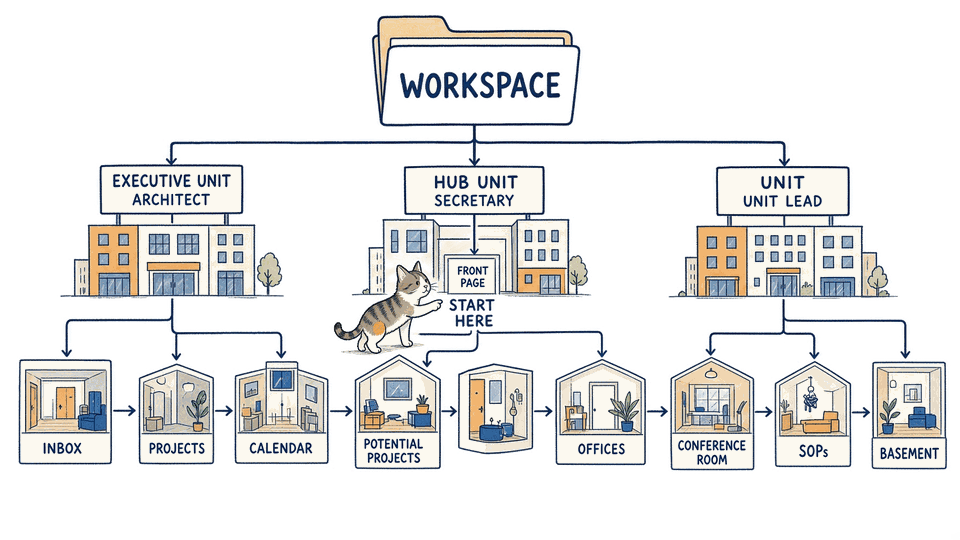
Your workspace is one main folder. Inside it, each area of your work, like your finances or your job search, gets its own folder called a unit. The executive unit holds the shared design and rules that all your AI assistants follow. The hub unit captures your ideas, sorts the Daily Note, keeps your to do lists and project pointers, and manages the calendar. You can add more units, and they follow the same shape as the hub.

Every unit has the same rooms, so your AI always knows where to look. There's an inbox, projects, a calendar, potential projects, offices with a desk for each persona, and SOPs (standard operating procedures, the written steps for recurring work). Each unit also has a short front page that says what it's for. The executive unit adds the Start Here room, which every AI reads first, plus a conference room, departments, templates and a basement with the one Trash Can. Code, design files and finished work you want to keep stay outside the workspace in a workshop and storeroom, listed on one page in Start Here.

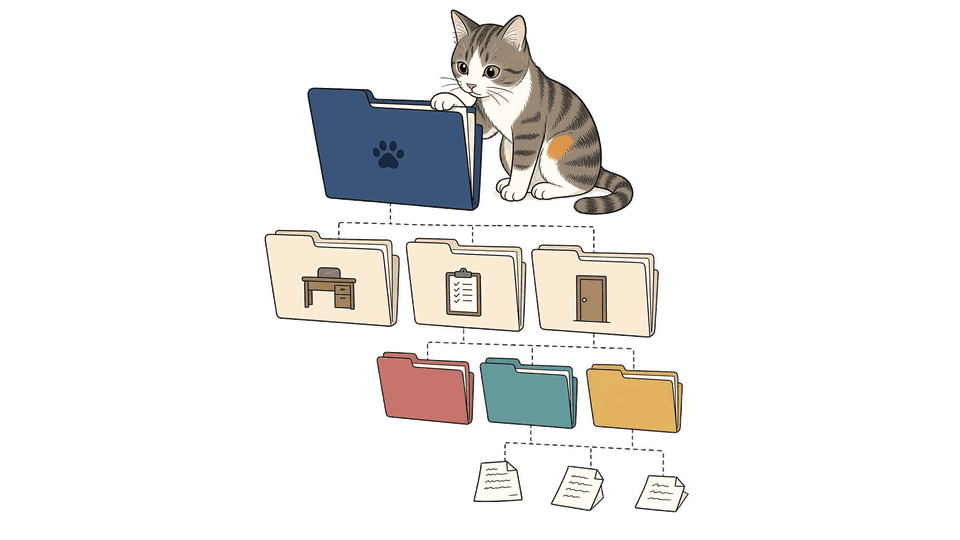
Workspace diagram labelled Executive Unit Architect, Hub Unit Secretary, and Unit Lead, opening at Front Page Start Here, with rooms Inbox, Projects, Calendar, Potential Projects, Offices, Conference Room, SOPs, and Basement.

Back to slides

Roles, personas and hosts

Each AI assistant in your workspace is a persona, like the Architect, the Secretary or a unit lead. Every persona has one profile page that holds both its job and its personality. The Architect looks after the rules and the layout, the Secretary runs the hub, and each unit you add gets a lead who works inside the subject you give it. You can rename a persona or change its manner any time, and its job stays put until you change it.

A host is the AI app or tool a persona works through. A working host can open and save the files itself, like an AI app on your computer or a coding tool that runs in the terminal (often called a CLI, short for command line interface). A guest host, like a chat website, can't reach your files, so you paste in a prepared packet and save what it gives back. One persona can work through more than one host. Everything lives in the files, so any host can pick up where the last one left off.

Two pages keep it all steady. Boundaries.md sits at the top of the workspace and says what your AI can do on its own, what it asks you first and what it never does. Every persona reads it each session, and only you change it. Each persona also has a Desk in its office that says what's next. A session starts at Start Here and reads the profile, Boundaries and Desk before any work. At End Session it updates the Desk so the next one knows where to pick up.

Obsidian showing the Staff Directory, a table of the Butler, the Secretary and the Steward with each one's stable ID, state and unit, and links to its Profile, Desk and Incoming.

Back to slides

Picture the structure your way

The PAWS starter kit shapes your workspace around proven productivity systems, with set administrative and secretarial roles for your AI assistants. It’s modular, so you can add units and tailor each one to its own purpose. For example, one unit could handle your online startup, another your personal finances, and a third your health goals. Add as many units as you like.

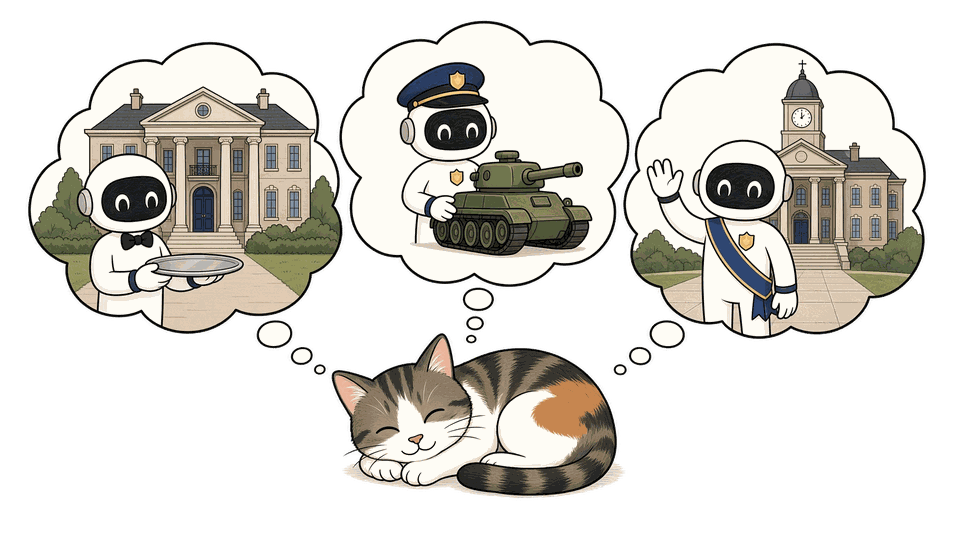
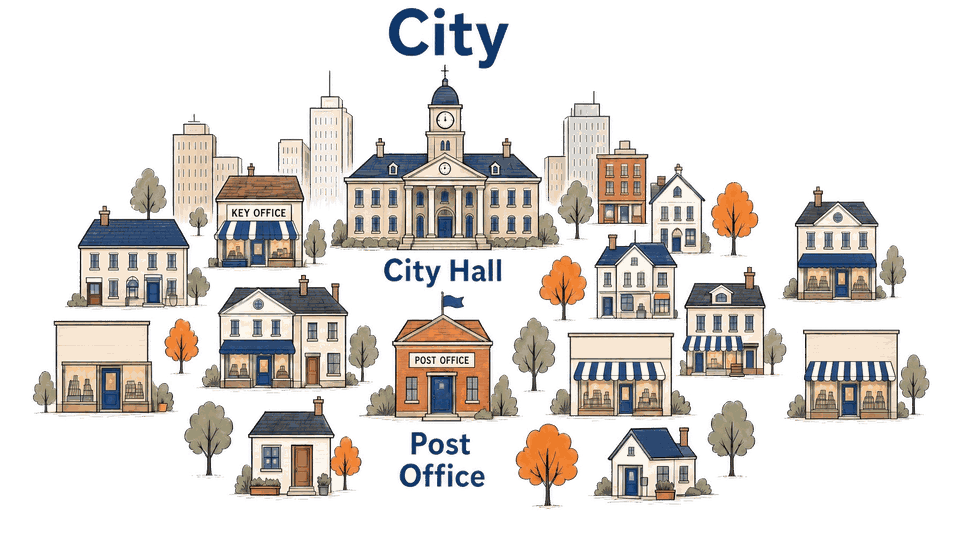
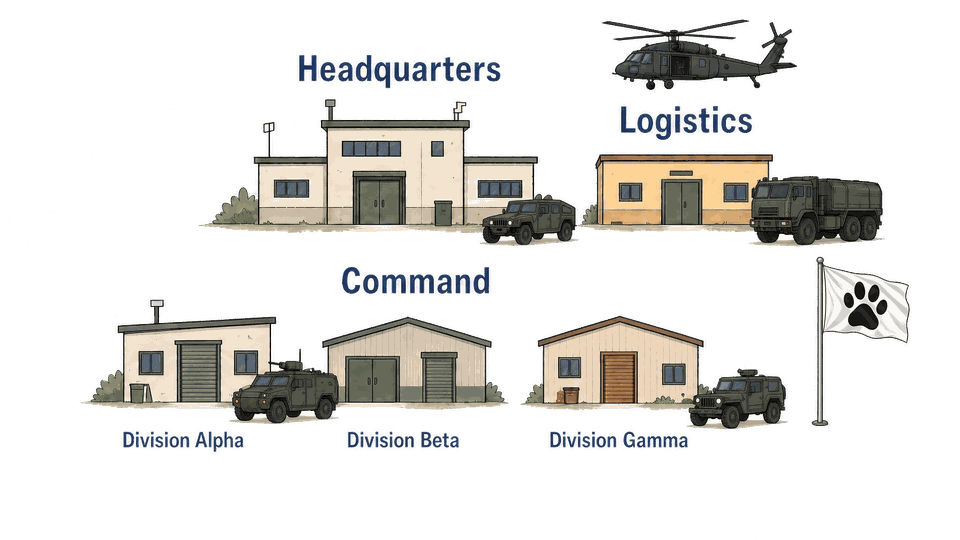
PAWS also lets you picture your workspace in a way that makes sense to you. It helps to think of it as a place you can walk through with your AIs in your mind’s eye. Here are a few ways to picture it:

  • AI City: The executive unit is City Hall, run by the Mayor. The Post Office is your hub unit, and each unit is a building with its own owner.
  • Estate: The Butler runs the Mansion home, the Secretary keeps the Home Office, and each Room has its own Steward.
  • Military AI Command: The General commands from HQ, the Quartermaster handles logistics, and each division has its own commander.
  • Space Fleet: The Captain works from the Space Ship, the 1st Officer runs the Bridge, and Crew staff the deck compartments.
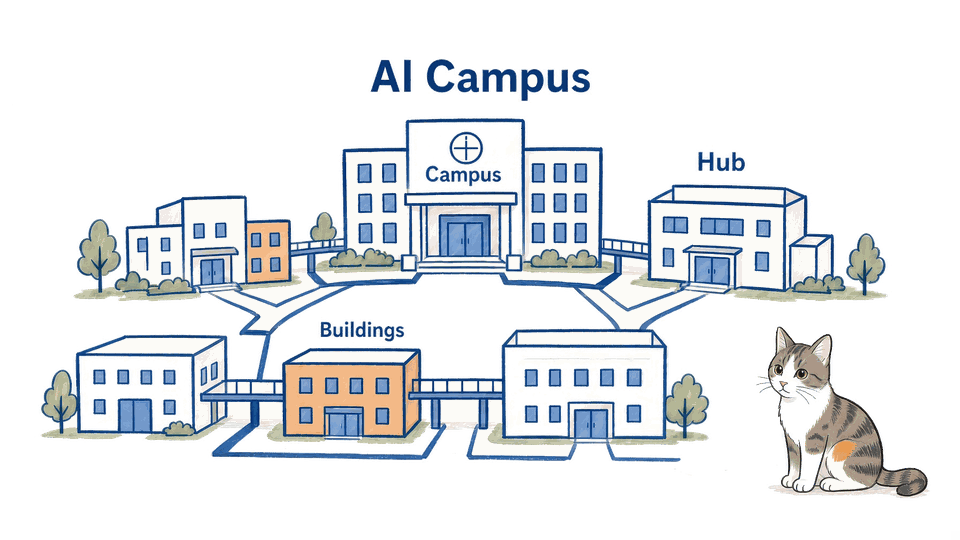
  • AI Campus: The Architect runs Old Main, the Secretary keeps the Hub, and each building has its own Director.

Pick one of these as a template in the PAWS Builder and it fills in the names for you. Or start from the plain baseline terms and name everything your own way. Either way, you can change any name in the Builder before you download.

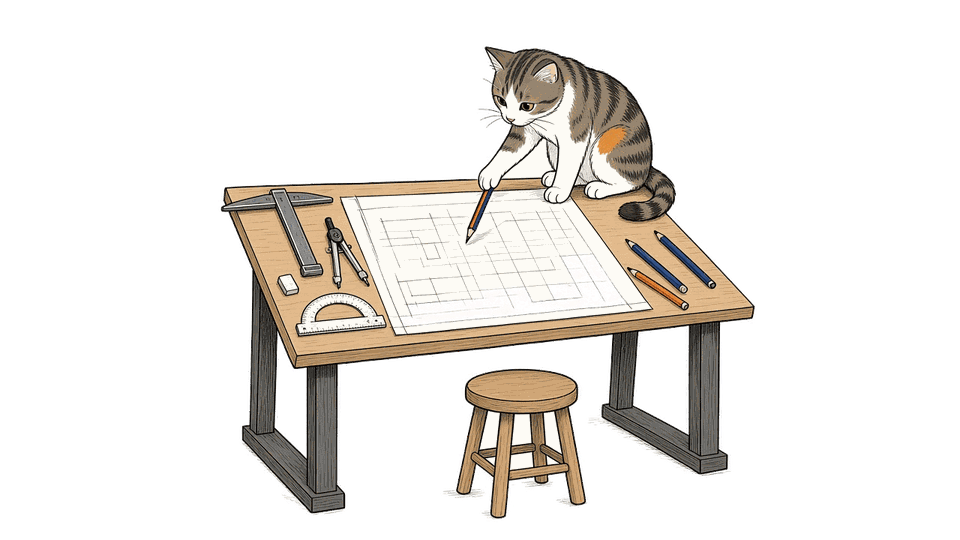
Thomas the cat asleep, daydreaming of a campus, a command post, and a city hall.

None of it is fixed. PAWS is meant to be changed.

Rename the units, rooms and roles, add or drop sections in the sheets, and adjust the session steps until it fits the way you work. PAWS is designed to improve and get better the more you and your AI use the system.

Back to slides

Personalize with PAWS Builder

Use the PAWS Builder to name your workspace and its units, give each lead a title and an optional name, and choose how many units you start with. The folders, file names and links change to match before you download. Pick a template or start from the baseline terms, answer a few questions, and download your personalized ZIP. You'll still set the files up with your AI after downloading. Nothing here is locked in. After you download, you and your AI can keep reshaping PAWS to fit the way you work.

PAWS Template options

Template: Design your ownchange

You can also start with the baseline kit.

Download baseline ZIP

Back to slides

Unzip, set up, and begin

Unzip the kit (double click the ZIP file and it opens into a folder) and read the README, the short welcome file at the top. Point your preferred AI assistant at the Setup folder, and it will walk you through a short onboarding and give you a tour of the workspace. Start with one area of work you want to manage, and use its files as you go.

The smoothest path is an AI app on your computer that can open the folder and work inside your files. Give that assistant access to the PAWS folder so it can read the instructions and help you keep the records up to date. Save the decisions and next actions you’ll want when you return.

A regular chat window can help you inspect the starter kit and setup files, if you save the updates yourself, before you get started. However, an AI agent is necessary to run and operate PAWS on a day-to-day basis. You end up with a workspace you and your AI can use together, in folders you own and can open anytime.

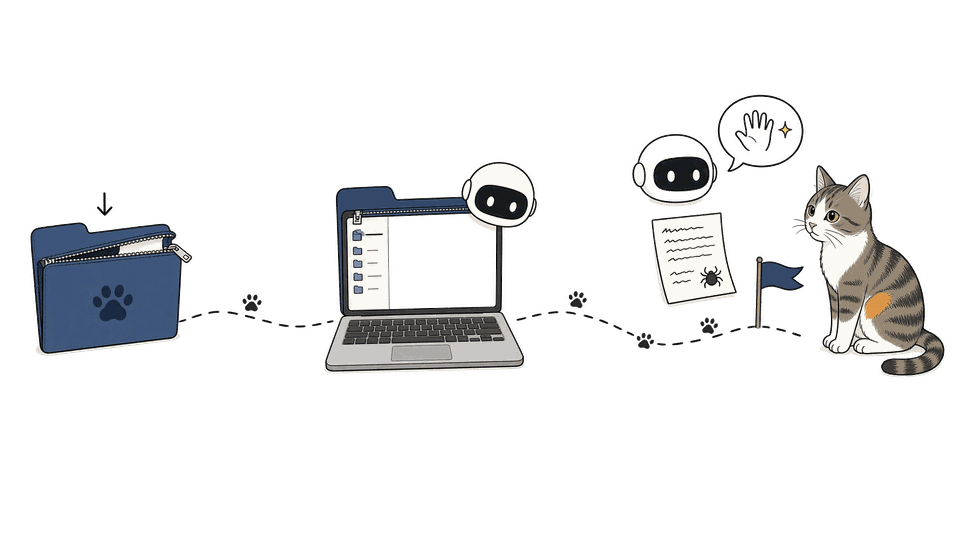
A path from a zipped folder to a laptop with a small robot, then to a cat.

Back to slides

Current limits and release status

This is PAWS version 1, the first public release. You can download the baseline ZIP or personalize it with the PAWS Builder.

The kit doesn’t include or run an AI, send notifications, or connect to outside accounts. Your AI can connect email, calendars, or other accounts if you want it to. Downloading the kit doesn’t give your AI a memory by itself. The memory lives in the files and builds up as you and your AI use them.

Thomas, the PAWS cat, sitting and waiting

Ready to set up your PAWS?

New to this? Start with Personalize. It asks a few questions and builds the kit for you.

Free. Plain folders and Markdown files you own.